



Update, October 2026: IMGO was built on ServiceNow Cloud Provisioning and Governance, which ServiceNow has since marked for deprecation. Its successor is OneCloud, a new application with no dependency on CPG or Cloud Services Catalog. The approach to moving is in our CPG deprecation article.
The Terraform connector for ServiceNow Cloud Management lets end users provision infrastructure from the ServiceNow catalogue. ServiceNow creates a workspace in Terraform Enterprise, Terraform runs the configuration held in your version control repository, and the resulting resources show up in the Cloud User Portal. Setup is split between Terraform Enterprise, your VCS and ServiceNow. Here’s the order we do it in.
Prerequisites
- An account on a Terraform Enterprise or Terraform Cloud organisation. Access in Terraform Cloud is team based, so the user you use must belong to a team with the right permissions.
- A ServiceNow instance with Cloud Management (Cloud Provisioning and Governance). A developer instance from developer.servicenow.com works for a trial.
- A supported version control system with read access to the repositories that hold your Terraform configuration. We use GitHub below.
- A private Git repository to host the integration.
Step 1: create a VCS provider in Terraform
This connects GitHub, where the cloud templates live, to Terraform, where runs and applies happen.
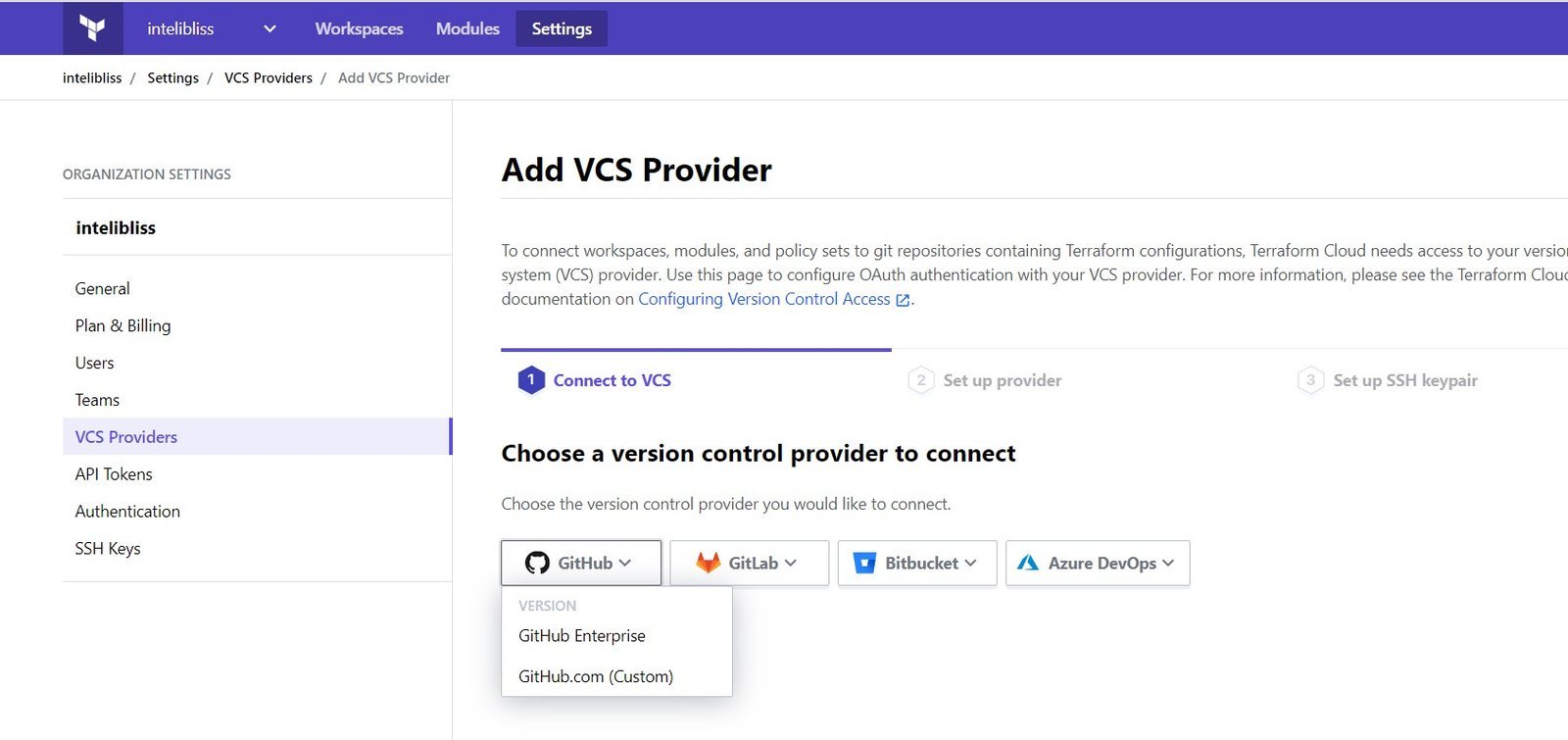
- In terraform.io choose your organisation, open Settings, select VCS Providers and click Add VCS Provider.
- Select GitHub, then GitHub.com (Custom).
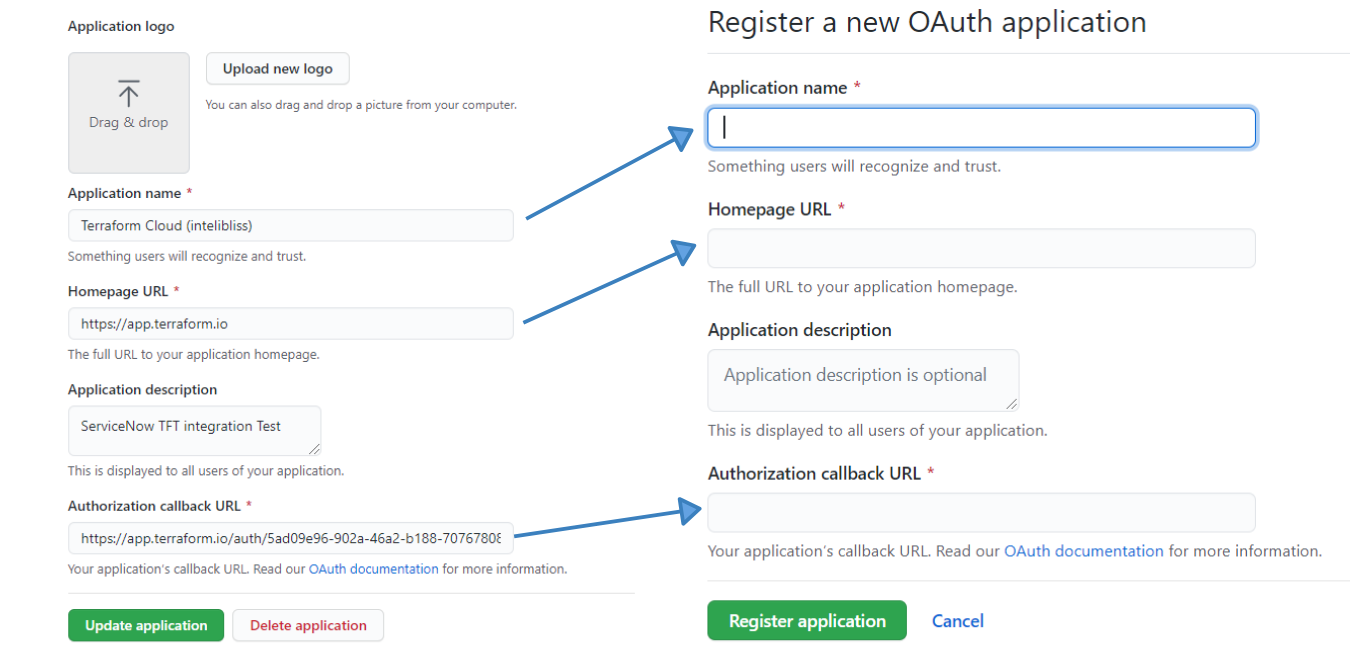
- In a new tab, open GitHub and register a new OAuth application. Copy the application name, homepage URL and authorisation callback URL that Terraform displays into the GitHub form and register the application.
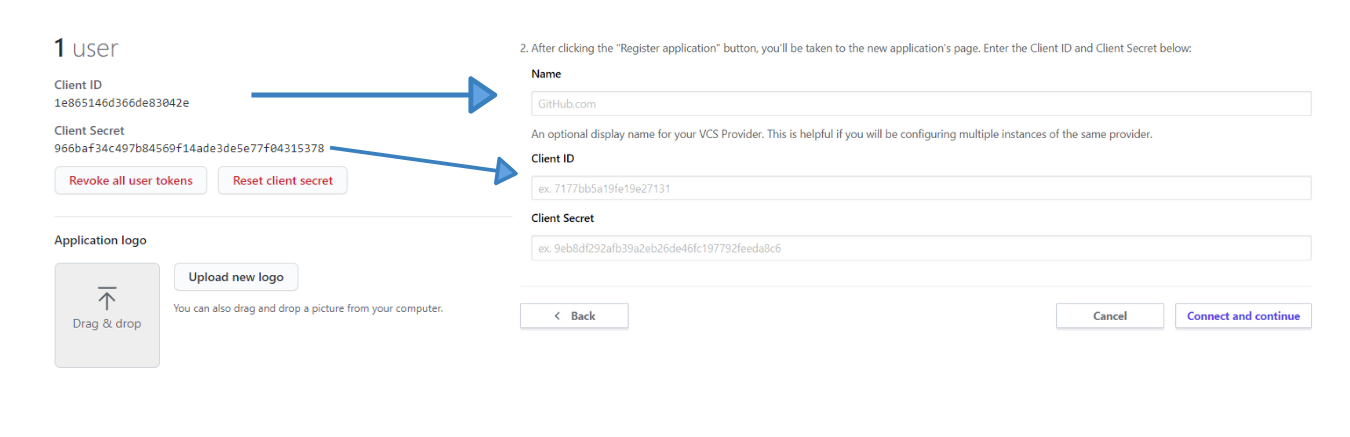
- Copy the client ID and client secret from GitHub back into Terraform and click Connect and continue.
Terraform can now see your repositories.
Step 2: install the Terraform connector in ServiceNow
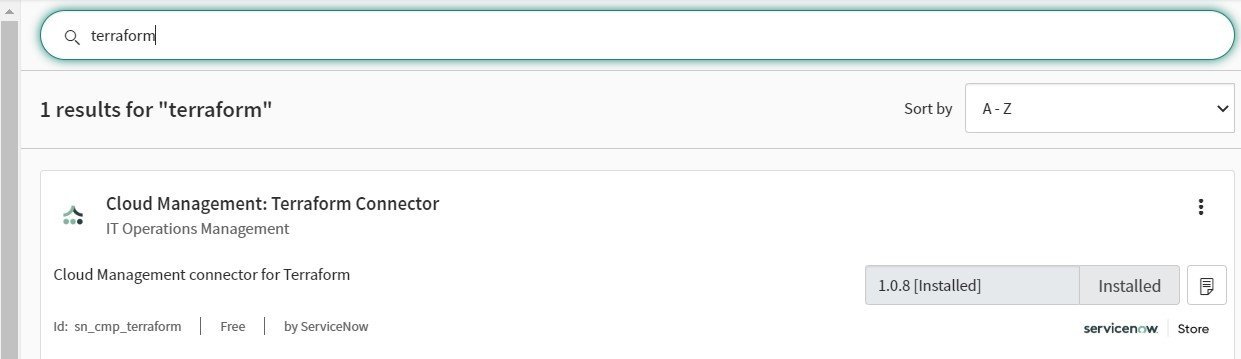
In the ServiceNow Store, search for “terraform” and install Cloud Management: Terraform Connector (sn_cmp_terraform).
Step 3: create a credential for Terraform
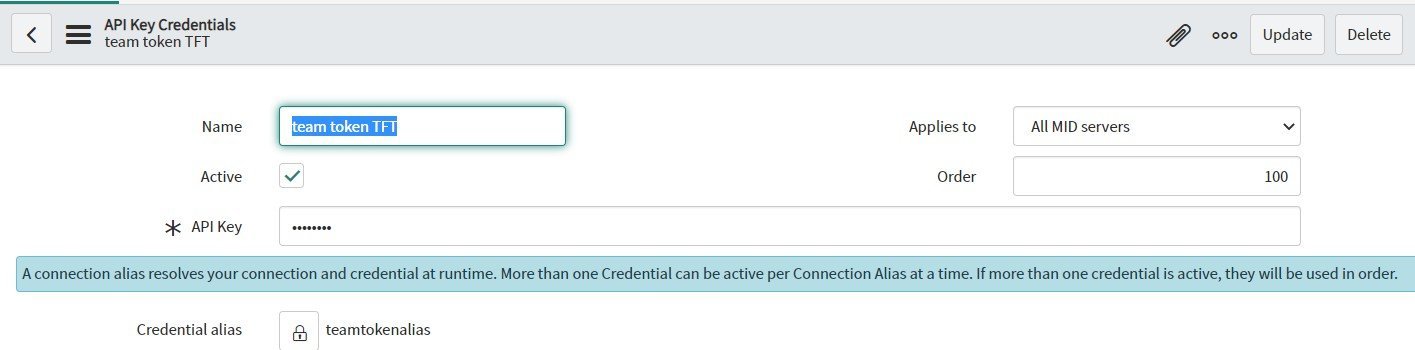
- Open the Cloud Admin Portal and go to Manage > Credentials > New > API Key Credentials.
- Generate an API token in terraform.io (a team token is the usual choice) and paste it into the API Key field.
- Create a credential alias of type Credentials in the Connection and Credential Aliases table and link it to the record.
Step 4: create the config provider and discover repositories
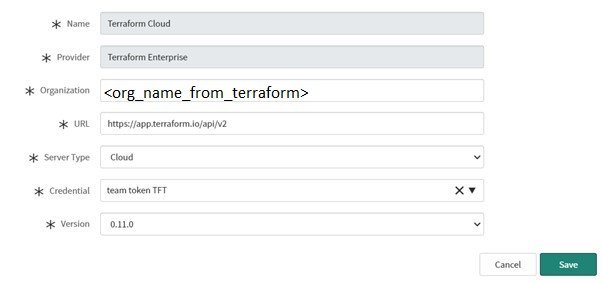
- In the Cloud Admin Portal go to Manage > Config Management > New.
- Fill in the provider details: provider Terraform Enterprise, your Terraform organisation name, URL https://app.terraform.io/api/v2, server type Cloud, the credential from step 3 and the Terraform version. Save.
- Select the new config provider and click Discover Now. This discovery isn’t schedulable, so run it by hand.
- When it completes, open the TFE VCS record and select the VCS provider you created in step 1.
- Create a second API key credential, this time for GitHub. Generate a personal access token under GitHub > Settings > Developer settings with the scopes you need, and store it the same way as in step 3.
- Attach the GitHub credential to the VCS record, save, and click Find Branches and Repositories.
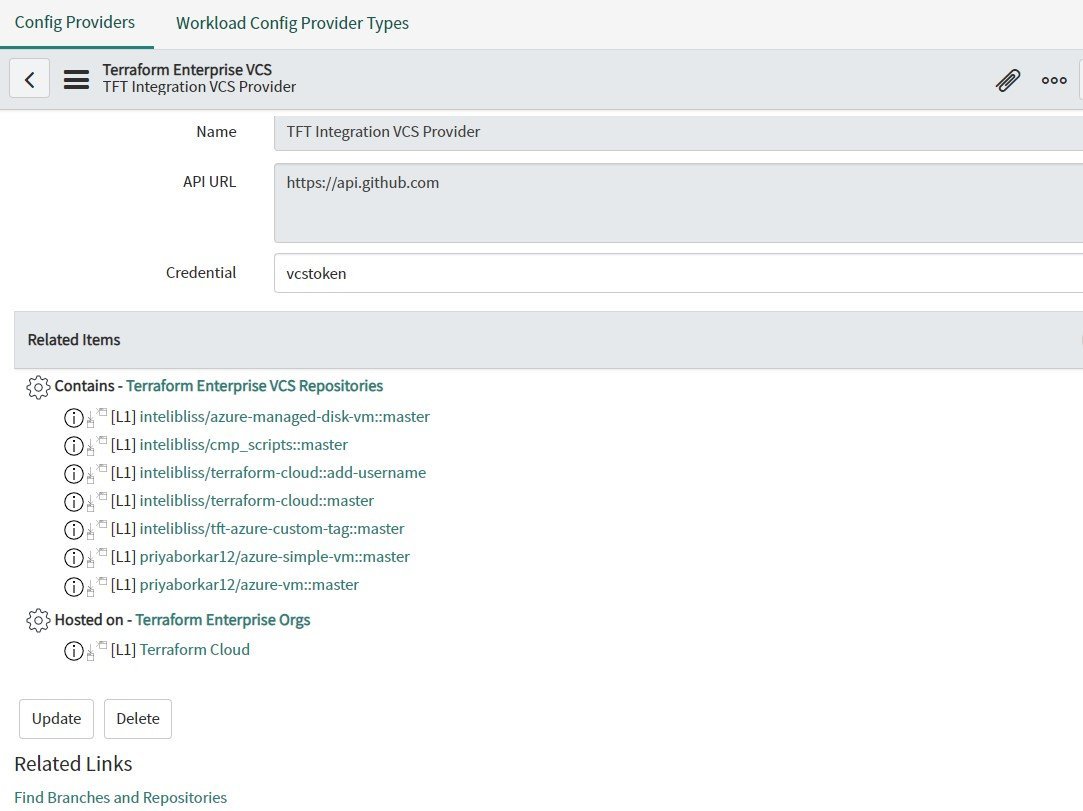
Every repository in the GitHub account should now appear under Related Items.
Step 5: design the catalogue item
- In the Cloud Admin Portal go to Design > Cloud Catalog Item > New.
- Give it a name and short description, set the catalogue type to Provision, the source to Configuration Management Template, the provider type to Terraform Enterprise and the provider to your config provider. Submit.
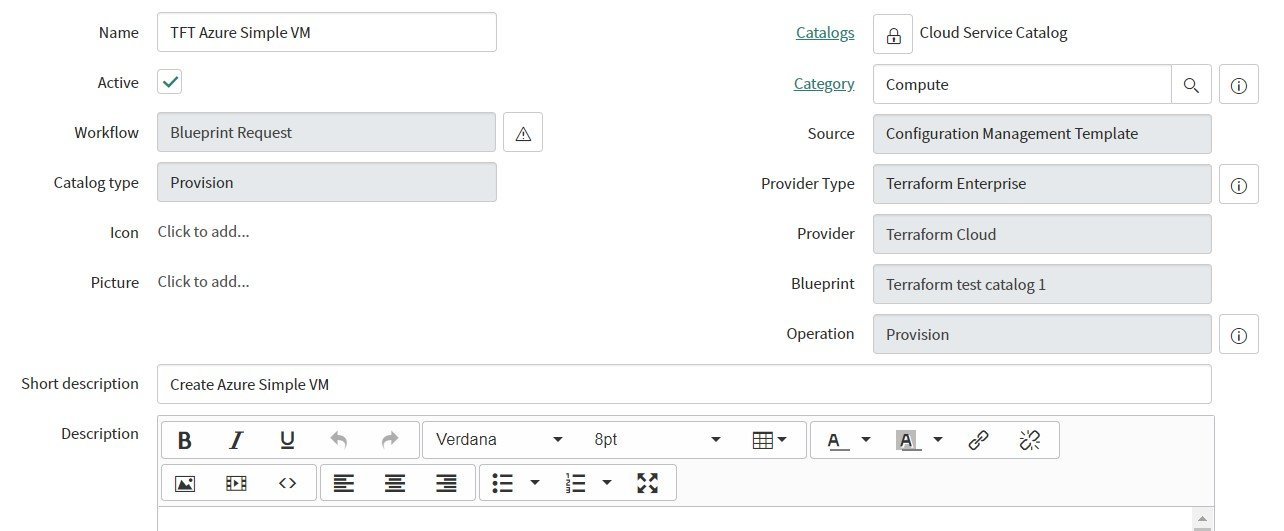
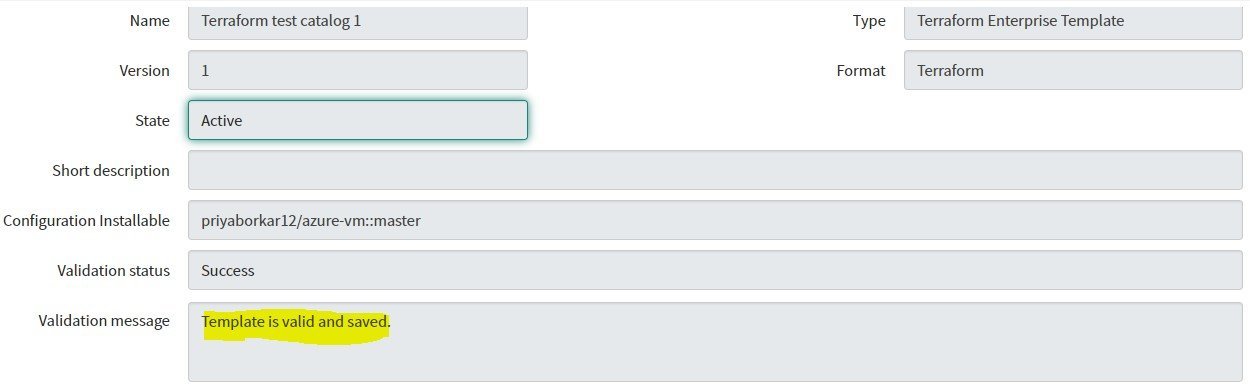
- Open the record, go to Cloud Template > New and select the configuration installable that was discovered in step 4 (the repository and branch holding your template). Submit.
- Check that the template validates. The validation status should read Success.
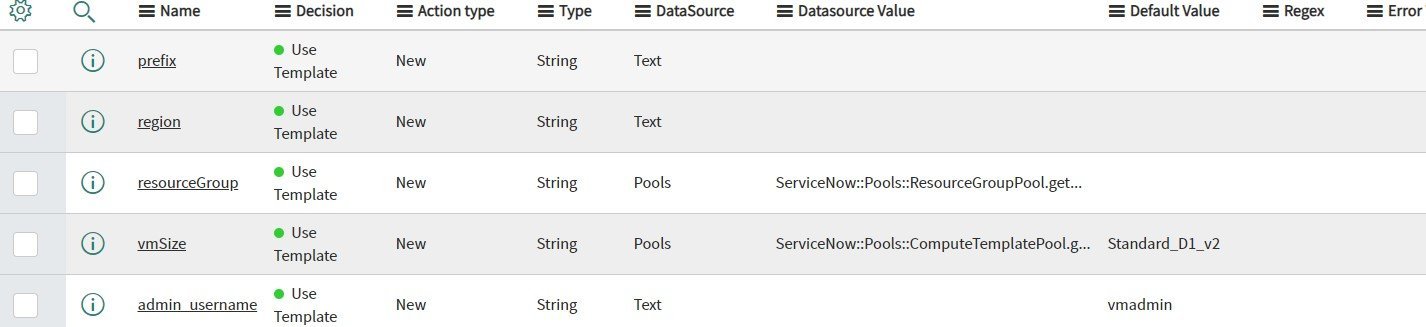
- Parameters and a variable set are created from the template’s variables. Review them and set defaults where it makes sense, such as the VM size.
- Tick Active on the catalogue item and update it. It’s now available in the Cloud User Portal.
Step 6: order a VM from the Cloud User Portal
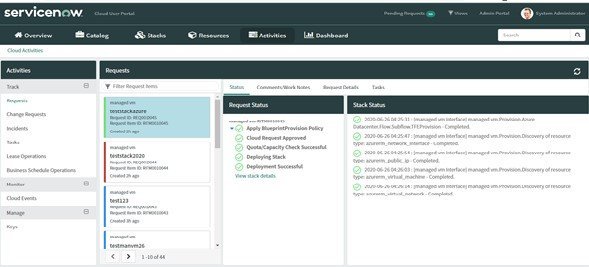
Open the Cloud User Portal, select the catalogue item, fill in the order details and submit. You should see three things happen:
- A flow triggers in ServiceNow and the request moves through policy, approval and quota checks.
- A workspace is created in Terraform Enterprise and a webhook is registered in GitHub.
- Terraform runs and applies the configuration, and the VM is provisioned. The stack and its resources appear in the portal.
Once this works for one template, adding further cloud providers or environments is mostly a matter of adding repositories and catalogue items. The connector does the heavy lifting, and the time goes into writing good Terraform.
