



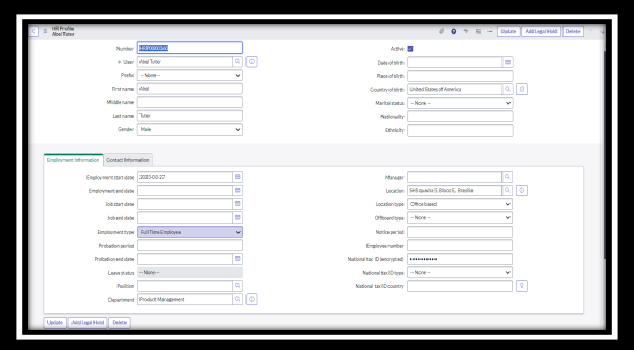
In ServiceNow HRSD the HR Profile is the record that case creation hangs off. Every Centre of Excellence (COE), whether it’s benefits, employee relations, payroll or talent acquisition, can have its own case workflow, and each of those workflows reads from the profile to decide what the employee is entitled to and who should see the case. Understanding the profile, and the ways a case can be created against it, saves a lot of confusion when you start configuring HR services.
Three ways to create an HR case
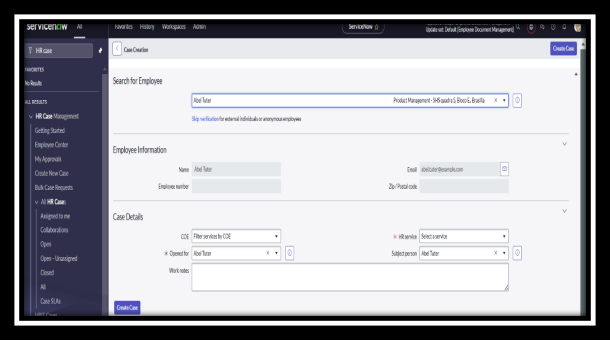
From the HR Case Management list
HR agents working in the HR Case Management module can select “Create New Case” from the list. They search for the employee, the employee information populates from the profile, and they pick the COE and HR service before adding case details.
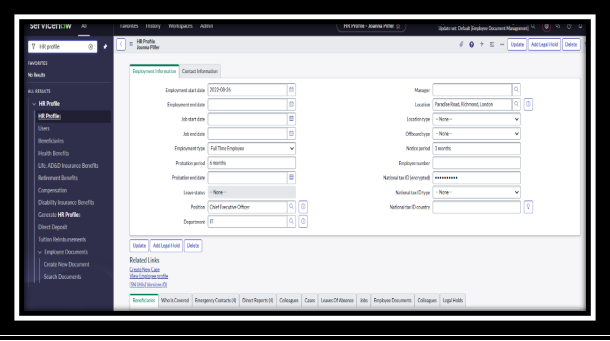
From the HR Profile
For cases about a specific person, an agent can open that employee’s HR Profile and start a case from there using the “Create New Case” related link. The case is pre-associated with the employee, which is handy when the agent is already looking at their record.
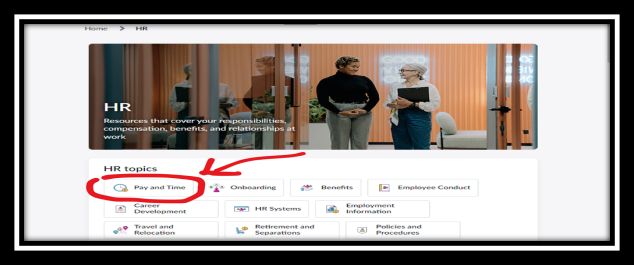
From Employee Center
Employees raise their own cases through Employee Center, choosing from the HR services their profile and eligibility rules allow them to see. This is the channel that takes load off the HR team, since common requests never need an agent to open them.
Having all three channels, each aligned to COE configuration, means every case lands in the right workflow with the right compliance rules, regardless of who opened it.
What the HR Profile is
The HR Profile is the central store of employee information for HRSD. It’s separate from the User (sys_user) record and it holds confidential data: date of birth, marital status, ethnicity, national tax ID and similar fields. Records live in the hr_profile table.
Access is restricted. Only users with a role that includes sn_hr_core.profile_reader or sn_hr_core.profile_writer can see HR Profile data, and sn_hr_core.secure_info_reader controls the most sensitive fields. A user with sn_hr_core.profile_reader can view a profile but not change it.
The link to the HR Profile sits in the related links on the sys_user form.
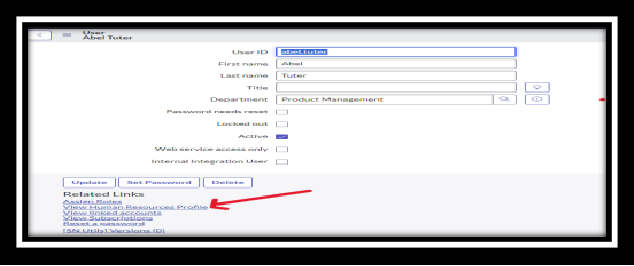
Click the related link and the full profile opens, with employment information and contact information tabs.
Creating HR profiles
For an individual user who doesn’t have a profile yet, open the User record and select “Create Human Resources Profile” from the related links. If a profile already exists the link reads “View Human Resources Profile” instead.
For a population of users, use the “Generate HR Profiles” module. You filter the users who need a profile (for example, everyone where Cost center is Finance), set default values such as employment type, and let the platform create the records in bulk. Profiles can only be generated for active users.
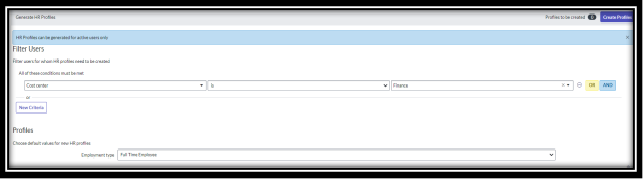
In short the HR Profile centralises employee data in one place, drives which HR services each person sees, and keeps sensitive information behind role based access. That last point is what makes the first two safe.
Who can see what
HRSD assigns different practical access to three groups.
HR administrators
Administrators configure and maintain the profile. In practice they:
- Add or change profile fields, for example a custom “Remote eligibility” field to support a new policy.
- Assign permissions so agents and employees only see what they need.
- Set retention rules so documents are kept for the right period. If a new regulation requires training records to be held for seven years, the administrator sets that once and the platform enforces it.
HR agents
Agents work cases. They don’t get the whole profile, only the data relevant to the case in front of them. For a leave request that might be job status, leave balances and contact details. During an internal transfer they can update department and manager, but they won’t see medical information unless the case specifically requires it. This keeps agents effective without over-exposing personal data.
Employees
Employees have limited self-service access to their own profile. They can update personal data such as address, emergency contact or phone number, upload documents like tax forms or proof of eligibility, and see a list of HR services tailored to their department and role. Updates are reflected immediately, which keeps records current without HR having to re-key anything.
Two worked examples
Onboarding a new starter. The administrator has already configured the onboarding fields, say “Preferred pronouns” and “Remote work eligibility”. The agent opens the onboarding case and updates the profile as they verify identity documents and confirm the job role. The employee logs into Employee Center, sees their profile and uploads their ID and signed contract directly, so HR has everything it needs to finish the process.
An internal transfer. The agent handles the transfer case, updating department and manager on the profile without touching anything unrelated. The employee can see the updated profile and confirm the change. The administrator’s job is to make sure the transfer workflow and the access policies behind it are in place beforehand.
Get the HR Profile right, with the correct roles and a sensible generation strategy, and case creation across every channel becomes much easier to configure and support.
