



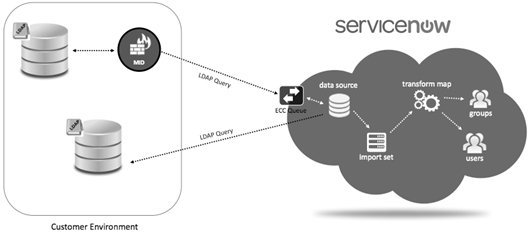
LDAP (Lightweight Directory Access Protocol) integration lets ServiceNow query an LDAP directory, usually Active Directory, and use what it finds to populate and update the user and group tables. It’s still the most common way to get users into a new instance, and it’s worth understanding how the pieces fit before you start clicking through the setup.
How it works
LDAP is a client/server protocol. The LDAP client (ServiceNow, in this case) sends a bind request with a username and password, the server verifies the credentials and returns the requested directory data. The password is only used within the secure session and is never stored on the instance.
Groups matter here as much as users. A group is a set of users with a shared purpose: approving changes, resolving incidents, receiving notifications, working change tasks. Every user should belong to at least one group, and LDAP is normally where that membership comes from.
There are two separate parts to LDAP integration.
Data population. ServiceNow imports user and group records from the directory. Configuration flags let you create, ignore or skip incoming records to avoid inconsistencies, and you can limit which LDAP attributes are imported. If you don’t specify attributes, everything the server exposes comes across, which is rarely what you want.
Authentication. When LDAP authentication is enabled, login credentials are sent to the configured LDAP servers, so users can sign in to ServiceNow with the same credentials they use elsewhere on the network.
Using a MID Server
Connecting to LDAP through a MID Server is the most common setup because it’s simple and needs very little from the AD administrator. The instance never talks to the directory directly. The MID Server inside the network does that on its behalf.
Two limitations to be aware of. A MID Server connection can’t be used for authentication (login), and it doesn’t support SSL. The usual pattern is to import users and groups over LDAP via the MID Server and let SSO handle authentication.
Setting it up
Create the LDAP server record
Decide on the attributes you want to import before you create the server. If you leave attributes blank, the import set can create far too many fields and run into the row size limit.
- Search for LDAP in the application navigator and create a new LDAP server.
- Type: Active Directory, or another type if you’re connecting to something else.
- Server name: something descriptive, for example “TestLDAPIntegration”.
- Server URL: the directory host. For a sandbox you can use a public test server such as the one at forumsys.com.
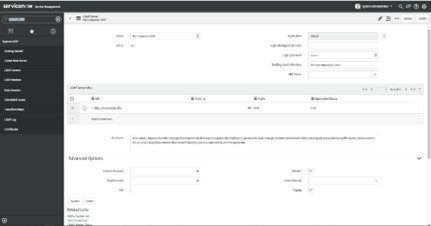
Set the starting search directory, which is the point in the directory tree where searches begin. Pointing this at the right organisational unit keeps queries fast and stops you importing accounts you don’t want.
Submit the form and add credentials
Submit the form to create the record. Then enter the Login distinguished name and password that ServiceNow will bind with. For a test server these are published on the provider’s site. For production, your AD administrator will supply a service account. Save the record.
Check the connection and OU definitions
LDAP OU definitions sit at the bottom of the LDAP Server form and control what gets searched. Once you’ve decided what to import:
- Use the “Test connection” related link. A success message confirms the bind worked.
- Under LDAP OU Definitions, open “Users”.
- Replace the default filter with the one you need, for example users whose name starts with a particular letter while you’re testing.
- Use “Browse” on the OU definition to confirm it’s pointing at the right location and returning records.
Import and map the data
Import sets are staging tables. Records land there first and a transform map turns them into real sys_user or sys_user_group rows. The “LDAP User Import” transform map is the one you’ll normally adjust.
- Under LDAP OU Definition > Users, open the data source.
- Click “Load All Records” to pull the directory data into the import set.
- Create (or open) the transform map, set the target table to sys_user and use auto map to match fields by name.
- Use the mapping assist tool for anything that doesn’t match automatically, such as mapping the LDAP uid attribute to User ID.
Save and run the transform, then check the User table to confirm the records arrived with the fields you expect.
A couple of practical notes
ServiceNow builds most of the scaffolding for you: the data source, OU definitions, transform maps and import set tables all get created when you set up the server. The part that trips people up is the LDAP query and filter.
Our advice is to build and test the filter outside ServiceNow first, in PowerShell or in Active Directory Users and Computers, so you know exactly which objects it returns. If you don’t own the directory, get the AD administrator involved early. A clear picture of the organisational unit structure is the single most useful thing you can bring to an LDAP integration.
