



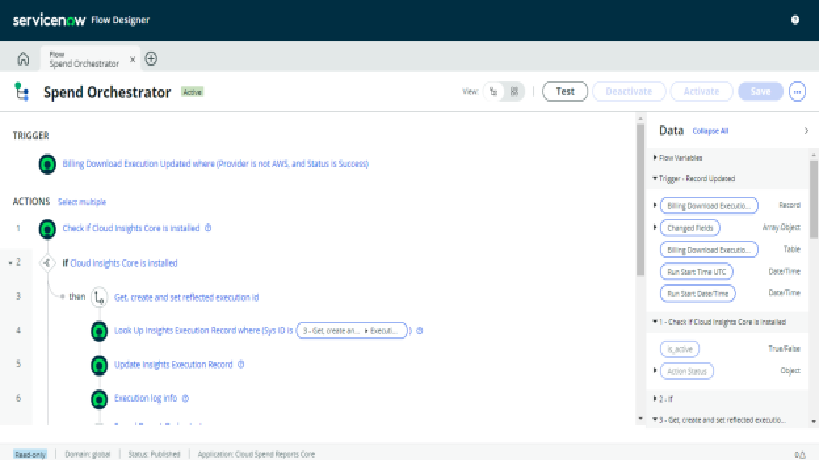
Flow Designer is the automation tool in ServiceNow. It replaces the older graphical Workflow editor for most new work and lets you build process automation from a trigger, a set of actions and some logic, mostly without writing script. If you’re starting on the platform, or still reaching for legacy Workflow out of habit, this is what you should know.
What Flow Designer is
Flow Designer is a visual environment inside the Now Platform for creating, managing and running automated processes. You pick a trigger (a record is created, a schedule fires, a catalog item is requested), add actions from the available spokes and set conditions between them. It’s usable by developers and by process owners who don’t script, and it’s used across ITSM, HR, customer service and custom applications alike.
Features that matter
Visual design. Flows are built by connecting pre-built actions and logic blocks. The learning curve is short, and a flow is readable by someone who didn’t build it, which legacy Workflow rarely was.
Integration through IntegrationHub. Spokes for third-party systems, REST steps and data stream actions let a flow call out to other applications and bring data back without custom scripting.
Reusable subflows and actions. Common sequences become subflows, and custom actions wrap logic you want to reuse. This reduces duplication and makes maintenance easier.
Conditional logic. If, else if, for each, do until and parallel branches handle the branching most processes need.
Testing inside the designer. You can test a flow step by step against a real record before activating it, and the execution details show every input and output.
Security and governance. Flows respect platform security, changes are audited, and access is controlled by role.
Domain separation. Flows and actions can be domain separated, which matters for MSPs and large multi-tenant estates.
Decision tables. Decision Builder lets business users maintain decision logic in a table, separate from the flow that uses it.
Roles. Flow Designer is part of the base platform, so there’s nothing extra to license for the core product. Users need admin, or a role such as flow_designer, flow_operator or action_designer, depending on what they do.
Where it gets used
- Incident management: assign, prioritise and escalate incidents based on category, CI or severity.
- Change management: route approvals, send notifications and run impact checks when a change is submitted.
- HR onboarding: collect documents, provision access and assign training as tasks in a single flow.
- Customer service: route cases, update status and send satisfaction surveys on closure.
- Service requests: fulfil catalog items, provision assets and trigger software deployment.
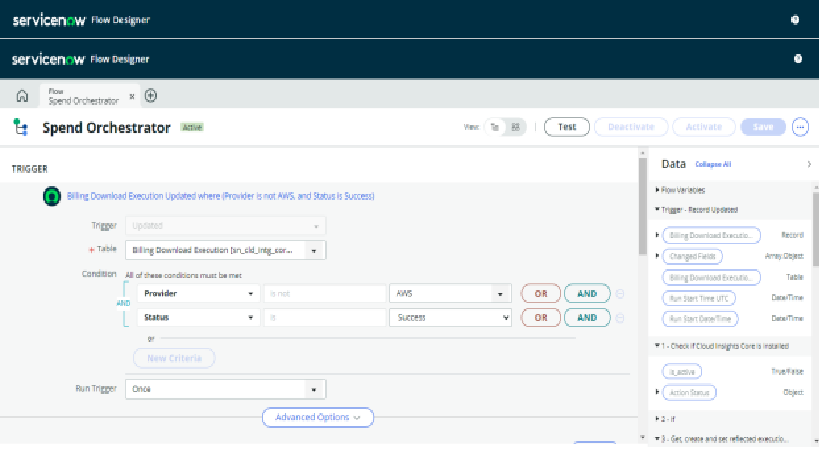
The trigger on a flow is where most of the design decisions happen. Here the trigger fires when a Billing Download Execution record is updated, only where the provider is not AWS and the status is Success:
Building a first flow
- Open Flow Designer from the application navigator (All > Process Automation > Flow Designer).
- Create a new flow, give it a meaningful name and choose the application scope.
- Add the trigger. Choose record created, record updated, a schedule or another trigger type, and set the table and conditions.
- Add actions and logic. Use the action picker to add platform or spoke actions, and use data pills to pass values from the trigger and earlier steps into later ones.
- Test with a real record. Review the execution details, including each step’s inputs and outputs.
- Activate the flow and monitor it. Flow executions are visible under Flow Designer > Executions, which is the first place to look when a flow doesn’t behave.
A couple of opinions
Default to Flow Designer for new automation. Legacy Workflow still works and still has its place in some older catalog items, but new processes should be flows, and the catalog item fulfilment flows in particular are easier to maintain.
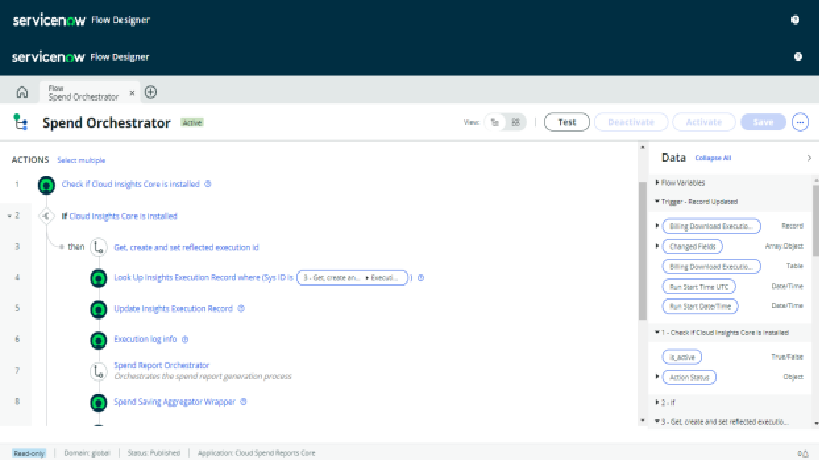
Keep flows small. A long flow that does everything is as hard to follow as a long script. Break the common parts into subflows, name them well, and let the main flow read like an outline of the process. That’s the main benefit of the tool, and it only holds if you use it that way.
